1. On the Alpha search menu, search for Student Profiles at 1 and select Student Profiles in the menu at 2 to open the profiles window.
2. At the Student Profile window, enter the student's access or registration number at (i) and then click search at (ii), to load the student's information.
3. After loading the student's information, click REGISTRATIONS at 3 to view the student's registration information, including the registration type (Normal, Off-semester Retake, or On Semester Retake).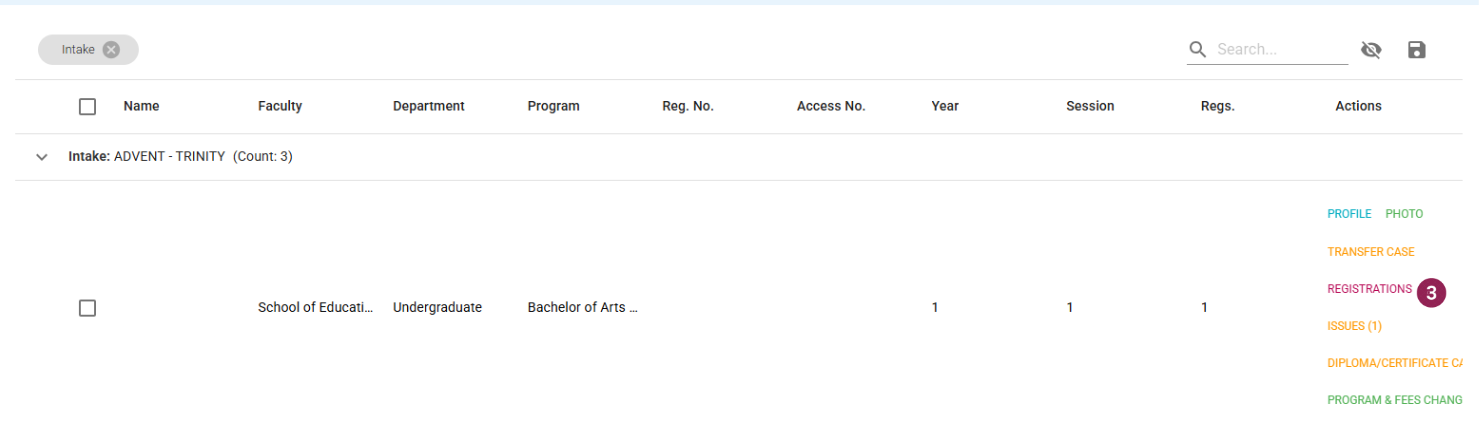
4. Below is a view the different forms of registrations that a student can have.
a) Normal Semester Registration
The student has normal progress and is registered to the semester as per their normal study schedule.
b) Off-Semester Retake Registration
Off-Semester Retake Registration means that at the particular the student is off session, but returns to do papers that they are meant to redo (retakes), failed or missed papers.
c) Normal On-Semester Retake Registration
This means that the student is registered for normal study , but at the same time, has paper that they choose to redo (missed or failed papers)
5. Click on Courses at 4 for the semester that the student claims to have done the retake to view the course units in that semester.
6. Upon opening the course units, click on the Eye at 5.
7. Select Retake Status at 6, in the drop down menu. This will show whether the course unit Is Retake or Not Retake.